Viewsonic ifp8633 – Complete Guide, Features, Setup & Review
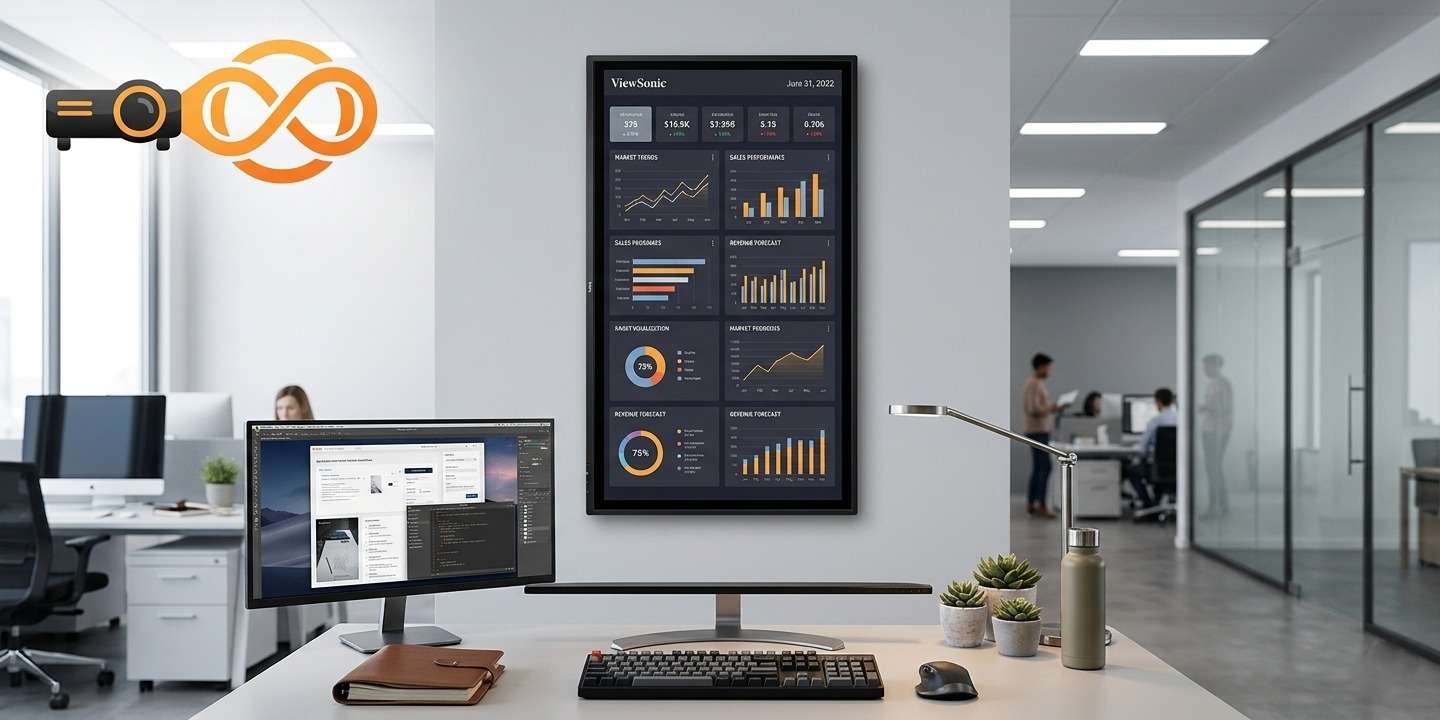
The Viewsonic ifp8633 is a powerful interactive flat panel designed for modern classrooms, offices, and meeting rooms. Built by ViewSonic, this display offers smooth touch control, high clarity visuals, and smart collaboration tools. It is widely used where digital learning and teamwork are important.
In this blog, we will explore its features, setup process, firmware details, manual guide, and overall performance in simple English.
What is Viewsonic ifp8633?
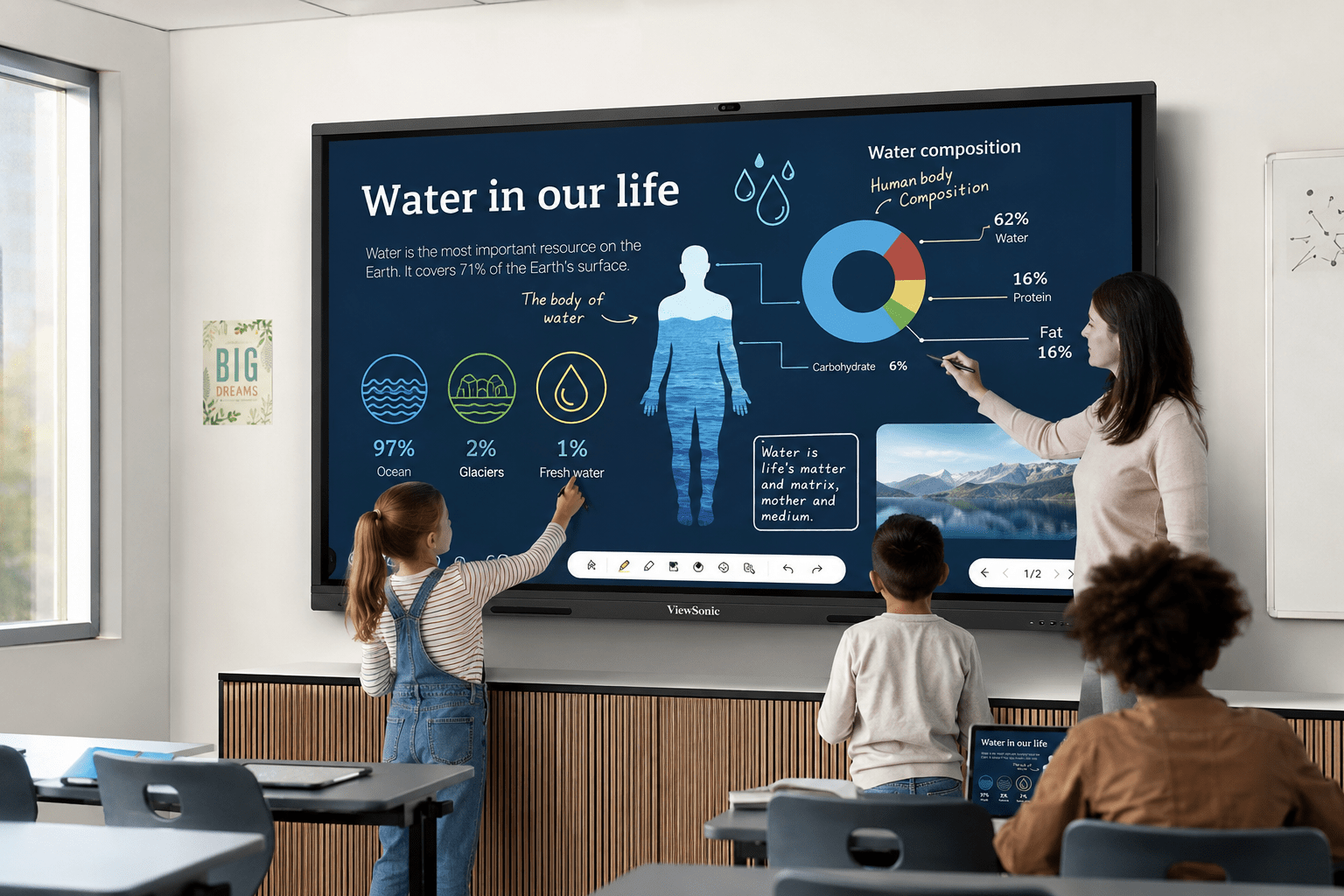
The Viewsonic ifp8633 is an 86-inch interactive display panel designed to replace traditional whiteboards and projectors. It allows users to write, draw, and present directly on the screen using touch or a stylus.
Key Purpose
- Smart teaching in classrooms
- Professional presentations in offices
- Online collaboration and training sessions
This makes it a complete digital solution for modern communication needs.
Key Features of Viewsonic ifp8633
The Viewsonic ifp8633 comes with many advanced features that make it highly useful.
Ultra HD Display Quality
The screen offers sharp 4K resolution, giving clear images and text even from a distance.
It supports multiple users at the same time, making group work easy and interactive.
Built-in Android System
You can install apps directly on the display without needing a computer.
Eye Care Technology
Reduces eye strain during long usage hours, especially useful in classrooms.
Wireless Sharing
You can easily share content from laptops, tablets, or mobile phones.
Viewsonic ifp8633 Review
When looking at the Viewsonic ifp8633 g review, most users highlight its smooth performance and easy usability.
Performance
The system runs fast and handles multiple tasks without lag.
Display Quality
Colors are bright, and text looks very sharp on the large screen.
Usability
Even beginners can learn to use it quickly due to its simple interface.
Overall, it is a strong choice for schools and businesses looking for an all-in-one display solution.
Viewsonic ifp8633 Setup Guide
Setting up the Viewsonic ifp8633 g setup is simple if you follow the steps carefully.
Step-by-Step Setup
- Place the display on a stable wall mount or stand
- Connect the power cable properly
- Turn on the device using the main switch
- Connect Wi-Fi or LAN for internet access
- Complete the on-screen setup instructions
You can also connect external devices like laptops and PCs for presentations.
👉 Learn more product details here:
Viewsonic IFP8633 Product Page
Viewsonic ifp8633 Firmware Update
The Viewsonic ifp8633 g firmware is important for keeping the system updated and secure.
Why Firmware Matters
- Improves system performance
- Fixes bugs and errors
- Adds new features
How to Update Firmware
- Go to settings menu
- Select “System Update”
- Download and install the latest version
- Restart the device
Always ensure stable internet while updating firmware.
Viewsonic ifp8633 Manual Guide
The Viewsonic ifp8633 g manual helps users understand all functions of the device.
What You Will Find in the Manual
- Installation instructions
- Touch gestures guide
- Connectivity options
- Troubleshooting tips
It is recommended to read the manual before full usage for better understanding.
Benefits of Viewsonic ifp8633
H3: For Education
- Better student engagement
- Interactive learning experience
- Easy digital teaching tools
For Business
- Professional presentations
- Team collaboration tools
- Remote meeting support
For Training Centers
- Interactive workshops
- Real-time annotations
- Easy content sharing
Conclusion
The Viewsonic ifp8633 is a modern interactive display that combines technology and simplicity. Whether used in schools, offices, or training centers, it delivers excellent performance, clear visuals, and smooth interaction. With easy setup, strong firmware support, and helpful manuals, it is a reliable choice for digital communication needs.
Frequently Asked Questions (FAQs)
Q1: What is Viewsonic ifp8633 used for?
A: It is used for teaching, presentations, and interactive meetings.
Q2: Does Viewsonic ifp8633 support multi-touch?
A: Yes, it supports multiple users touching the screen at the same time.
Q3: How to do Viewsonic ifp8633 setup?
A: It can be set up by mounting, connecting power, and following on-screen instructions.
Q4: Where can I find Viewsonic ifp8633 firmware update?
A: Firmware updates are available in the system settings menu.
Q5: Is Viewsonic ifp8633 good for classrooms?
A: Yes, it is highly suitable for interactive and smart learning environments.
For more Tech products, visit it.biz.pk